Showing posts with label My Digital Studio. Show all posts

Wednesday, June 6, 2012

Color Coach Blog Hop: Real Red

You are coming from  Amanda's Blog. A group of us morning chatters over at Butternut Sage Designs have been using the color coach to expand our color horizons.


This week's challenge is REAL RED!  We could either use Bashful Blue and Crumb Cake, or Early Espresso and Pumpkin Pie...

Here is my take on Real Red, Early espresso, and Pumpkin Pie:

I used My Digital Studio to create this page.  I love MDS. 
 After I print the page I plan on adding some journaling and embellishments.  That's the beauty of the hybrid scrapbook page :)

  Thanks for looking.

Be sure to keep hopping!  Here is Liz's Blog.  Enjoy.


Friday, May 25, 2012

Red, White and Blue Chat Challenge

The ladies from Sunny Morning Chat Group at Butternut Sage Design have given us a RED, White and Blue challenge.

Here is my take on it:

I made this using My Digital Studio


Thanks for looking.

Friday, March 23, 2012

MDS: Scrapbook Alexandra's 7th Birthday

Trying to get back into the blogging habit.  Here is the scrapbook page I made with My Digital Studio.  I am proud to say that this page is done using ONLY stamps and papers that come with the program. 


Thanks for looking.

Monday, May 16, 2011

MDS Thursday: Downloads

Blogger was having technical difficulties and was unable to post this on time, but here it is :)

I have recieved a lot of questions about downloading new stampe sets and kits, so I figured I would dedicate a post to it.

First, you can order downloads only from the the Stampin' Up! website.  Second, it's easier if you are using the computer you are actually downloading to; this will save you time later looking for the download.

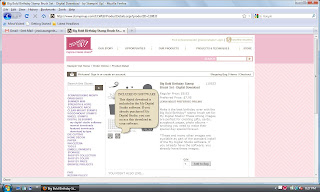
When you pick a download, it will take you the "description" widow.  It's important to know that the little icon will tell you if it came with the full  My Digital Studio version you have already purchased.  You don't want to buy something you already have. (This does not, however apply to the My Digital Studio Express version of the software.)


The other icon tells you it is not part of the full My Digital Studio version. Therefore, it is new and you do not already have it.

Once you have added it to your bag and purchased it, it will ask you to download now.  Make sure you are doing this on the computer that has My Digital Studio installed.

It will ask you if want to download for your PC or Mac,. it will also ask if you want to download to your MDS or other applications .  Unless you are using this download in a program other than MDS, you should just download it for MDS.

Follow the steps to download and save the file.


Here is when you have to slow down and pay attention.. Your download will go to your download folder.  It is very important you know where this folder is on your computer or you will not be able to "start/use" your download.

Even though you have download, it will not show up in your MDS.

Find your Computer icon either on your desktop or in your menu ( see red circles)

Locate your Downloads folder  and double click ( see red circles)

This folder will open and show you everything you have downloaded.  You want to double click on the download that has the name of what you just purchased for your MDS.  Mine is shown in the red circles.

This window will open for MDS.  This is where it will actually "activate"your download.  Follow the directions given.

Make sure it is going into My Digital Studio.

Now you are done.

And Ta Da!!!!!!!When you restart your MDS, your new download is there.  Remember if you order a kit/bundle, MDS separates the pieces into the categories where it belongs.  For examples, the stamp sets got to stamp sets and DSP goes to card stock.  It should all be in your designer kits.

Hope this helps. 
If you do this and you still can't find your download feel free to email me:  stampingwithjessica@gmail.com

Thursday, May 5, 2011

MDS Thursday: Photo Box Circles

My next MDS class will focus on Photo Boxes, so I have been playing around with it to learn as much as I can.

The original purpose of photo boxes is to allow the user to insert photos easily in to the program, so I am going to start with some of the basic functions of photo boxes.

When you insert a photo Box into your layout it always starts out as a square.  You can enlarge the square and turn it into a rectangle.

Check out this super simple way to add pizazz to your page.

Here is my initial scrapbook layout.


I like it the way it is, but I started to play with the tabs and discovered that I can turn the rectangles into ovals (if you have a square it will turn into a circle)


In the Design Center on the right of your screen is an option called Photo Shape (see red circle).
Click it once.

Finished Project


And Ta Da !!!!!!!  it will change the shape from rectangle to oval or square to circle.


 I like the ovals.  I think it gives it a more "handmade" look.

Give it a try!!  Thanks for looking.

Thursday, April 14, 2011

MDS Thursday: Merging Projects

This time of year I do my spring cleaning.  I clean my house from top to bottom, and get the gardens ready for planting.  My cleaning doesn't stop there, I also take the time to organize and clean out the files on my laptop.

When I first started using MDS I created a new project for every scrapbook layout and card I made.  Now I have tons of two page scrapbook projects, and one page card projects.  Well it's time for some spring cleaning.

I have been spending my time merging projects together and deleting the now empty folders. This is also helpful because when you upload a project to be printed you have a 5 page minimum, so now I am getting moneys worth.

Here is how to merge projects:


First open the project you want to move the pages into.  I have three project about winter 2011 which really should just be one project.


Go to the Menu bar and select Insert > Import from My Projects (see red circle)


This will open a window where you can browse all the MDS projects you have made (see red circle)


The window gives you a preview of the projects so you are sure you have the right one ( especially if you are like me a give everything the same name with a number at the end, bad idea )

Choose the project you want to merge and choose Open Project (see red circles)


It will open the project in this window.  You can click on the page numbers and it will show you the page it will import.  It also has an option to let you choose where you want to place the page.(see red circles)  

I place my pages at the end of the already existing pages and will move them later when the project is completed.

 Once you are done choosing your pages click > Import.


And Ta Da!!!!  Your pages are now in your project, you can see the thumbnails at the bottom of your project.

Make sure you save it, and now you can delete the other folder.  Before you delete your project make sure that you have moved all pages out of the folder you want to keep or that what is left in the project is not important.

BTW:  You can Import more than one page at time to a project.


Hold down the Shift button and highlight all the pages you want to import, then click import.

Thanks for looking.

Thursday, April 7, 2011

MDS Thursday: Masking Stamps

My Digital Studio has so many wonderful stamp sets, but sometimes you just want to use part of the stamp.  In traditional stamping you can block the parts you don't want with a mask (usually a piece of paper to block the ink).  How do you mask in MDS?  Well, you use punches.

Here is the page I created by masking some of the stamp:


The stamp set I used was the Nursery Necessities.


I like the little cutie title but I didn't want it in a straight line. So of course the mind starts going.  How can I erase what I don't want? So I figured I could use punches as coves, or masks, to hide what I don't want to see.

First, I stamped, enlarged, and added a drop shadow, then I copied (ctrl C) and pasted (ctrl V).  Now I have two of the same stamp.


When I was done editing the stamps, I moved them to where I wanted the title.


After I moved the stamps, I selected the square punch from the Resource Palette.  I resized the punch, copied (ctrl C) and pasted (ctrl V), and created two boxes.  Then I moved them to cover the parts of the stamp I do not want to see.


 I want the punch to blend into the background so I am going to use the Color Fill option in the Design Center (see red circle).  I am choosing white because I have a white background.


And Ta Da!!!!  You have "hidden" the stamp.

Go give it a try.  Thanks for looking.

Friday, April 1, 2011

MDS Thursday: Free MDS Update

WOW!!!!   MDS has a great update and it's FREE... 

Click on your Help Tab and choose Check for Updates - this will take you to the update window and follow the directions. 

Here are some of the updates.

Updated Software Functionality: More Ways to Design!

All My Digital Studio users who have the My Digital Studio packaged DVDs (item 118108) are eligible for a FREE 1.0.6 update. The update includes new functionality and print products to give you even more options while designing.

Group and edit: Enjoy the ability to group objects and then resize, recolor, and rotate, them all at once.

Access more information: View project dimension information in both inches and pixels when you right-click the project and view the Edit Object screen. Make sure to check out the Info tab on this same screen for more object details.

Get the pages you need: My Digital Studio automatically adds just the number of pages you need for the type of project you’re creating (for example, four pages for greeting cards, two pages for postcards, and 26 pages for calendars). Note that the last page of greeting cards, trifold cards, and calendars automatically includes the Stampin’ Up! and My Digital Studio logos as embellishment pieces which can be removed.

Choose what you view: You can check a box to show the bleed (trim) area in Preview Project, or simply uncheck to hide it.

Crop with confidence: When using the crop feature for Photos or Background Paper added as a page layer, use the ruler or width and height boxes to crop an image to the perfect size.

Keep it quick: Move back and forth between project pages with a quick key command (ctrl+right arrow for next page; ctrl+left arrow for previous page) or from the View menu in the top menu bar. View the Resource Palette with ease: Use your keyboard arrows in the Browse section of the Resource Palette to quickly toggle between artwork.

Add and delete pages in a flash: Do it all at once. Forget the days of adding and deleting pages one-by-one. Simply select the page thumbnails at the bottom of your canvas, right-click and delete.

Keep your favorites in line: Remove your favorite colors via the Remove Favorite button from the Favorites tab of the color palette.


If you have trouble updating MDS feel free to email me:  stampingwithjessica@gmail.com

Thursday, March 24, 2011

MDS Thursday: Ruffled Ribbon

I can not take credit for this trick, but  I love it and had to share it.
I made a quick card using it just so you can see the look, but I will be using this often.  So thank you Cindy Schuster.

How cute is the ribbon!!!


Check out the video tutorial Cindy created.


I am playing with this technique and I love it.

Go give it a try.  Thanks for looking.

Thursday, March 10, 2011

MDS Thursday: Drop Shadow

This week was my friend (and upline) Cindy's birthday, so I decided to use MDS to make her a birthday card.

Here is the card I made and emailed her:


This card was fun to make because it gave me a chance to play with drop shadow.  It was interesting to find out the different looks you can get using the drop shadow feature in MDS.  Drop shadow works the same way for stamps, photo boxes, embellishments and punches, so once you learn it you learn it for many things.


First, I choose a stamp.  This one is from the Together Forever SS.  Then choose the Drop Shadow box in the Design Center, see red circle.


When the Drop Shadow window opens you can change the Opacity, Blur, and Color of the Drop Shadow. (see red circles) The changes you make can be seen in the box where the stamp is displayed.


NOW THIS IS THE REALLY COOL PART!!!    Hold down your pointer in the display box and you can move, yes move the shadow around. (see red circle) It's awesome!!!!!


Once you have placed the shadow where you like, click ok.

And Ta Da!!!!!  You have a shadow.  It looks like you are sponging the edges.


To create the shadow on the other side, I copied and pasted ( in place, not off set) the stamp and just moved the shadow to the other side of the stamp.

Go give it a try.  Thanks for looking.

Thursday, March 3, 2011

MDS Thursday: Man That Was Easy: Creating an Embossed Look.

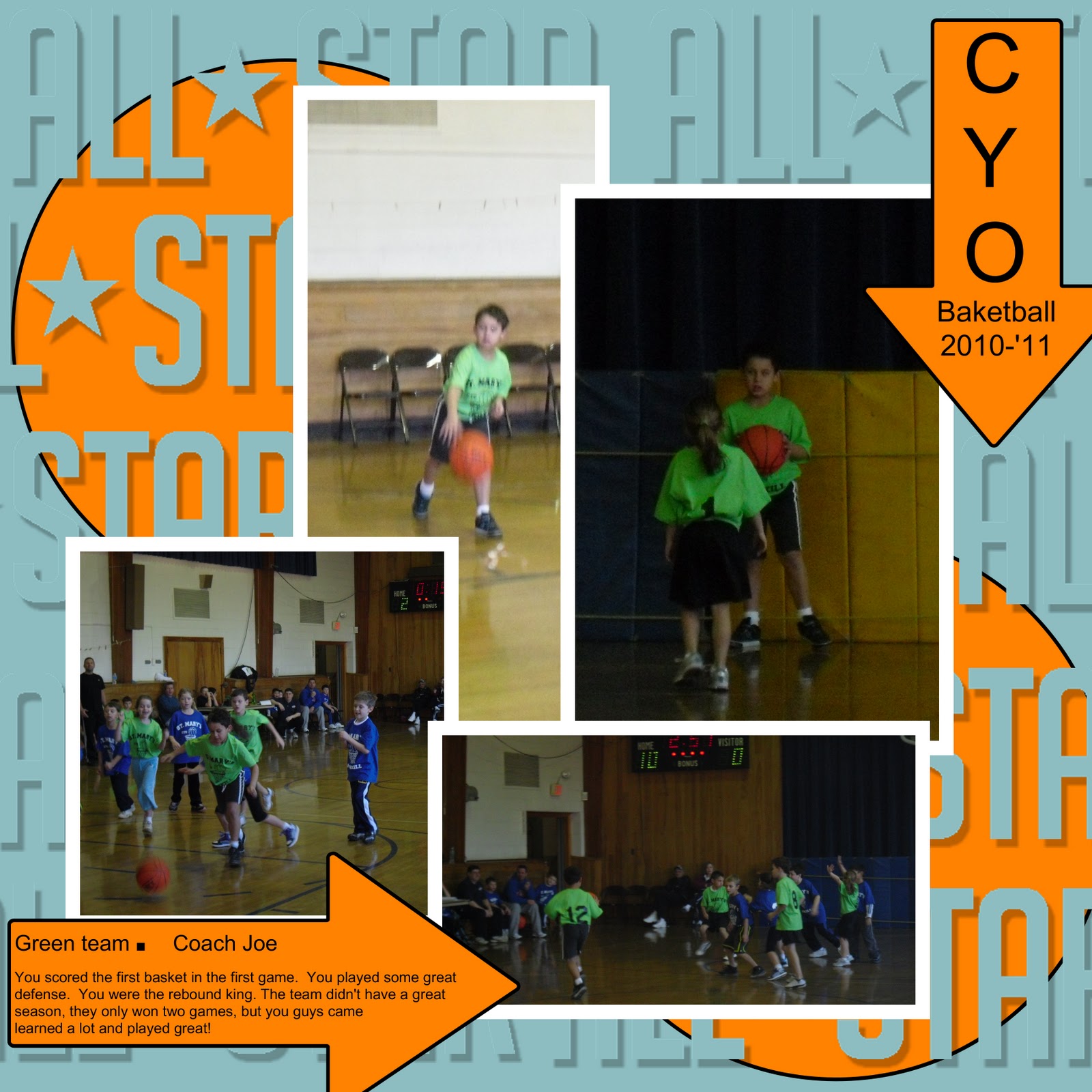
When I create cards or scrappages, I sometimes like to create embossed backgrounds. I wanted to do that on this basketball page for my son. Usually, I just grab my stamp set, versamark ink pad, and clear embossing powder and stamp away, but how do I create that digitally.

It was SO easy, I had to share.

Here is the page I created:


I used the All Star stamp to create an emboosed look on the background of the page.
Here is how I did it:


 Start by choosing a background color.  I am using Baja Breeze.


Then choose a stamp.  I am using the All Star stamp in the Sporting Stamp Set.


I resized the stamp and then clicked on Change Color in the Design Center.  I choose the same Baja Breeze as the background.


 Your stamp will disappear into the background.  Go to the Design Center and click on the Drop Shadow.  Set the Blur to none, the Opacity to about 50, and the color should stay black.  Click OK.

(Feel free to play with opacity setting to create different depth.)


And TA DA!!!!! It looks like you embossed the stamp.

Here is another background I created for my son's scrapbook.


Go give it a try.  Thanks for looking.

Thursday, February 24, 2011

MDS Thursday: Fake it Til You Make It > Hill

Welcome to another week of MDS Thursday.

With all the snow we have had this year I have taken thousands of pictures of my children sledding.  So here is yet another snow insprired page, lol.


Since I wanted to focus on sledding, I wanted to have a hill.  BUT how to make a hill in MDS.  Time to fake it.
Here is how I did it.

First, start by choosing the heart punch.

Enlarge the punch as big as you can get it on the page.

Using the rotation option(s)  rotate the heart.
 You can rotate an object two ways.  Move the pointer to the edge of the punch until it turns into a little arrow swirl, hold down and drag (rotate) the object.  See red circle ( unfortunately I couldn't capture the swirl but I promise it's there.)

Or you can use the rotate bar in the design center. See red circle.


Move the punch to create your "hill"

Color fill.
And Ta Da!!!!  A Hill!!!!!

I think this well be a good fake for a roller coaster in the summer too, lol.

Give it a try.  Thanks for looking.
Related Posts Plugin for WordPress, Blogger...