Showing posts with label scrapbook. Show all posts

Wednesday, June 20, 2012

Color Coach Challenge: Pacific Point

Welcome to another week of color coach challenge. Every week the girls from the Sunny Morning Chat are choosing a color from the color coach and following the suggested color combination.

The color this week is Pacific Point.   You saw Carol's take on Pacific Point on  Carol's Blog. 

Here is my take on Pacific Point:

I used Pacific Point, Daffodil Delight and Rich Razzleberry. 

I used the fabric from the Floral District collection for the Rich Razzleberry circles.  The circles were created by simply running the fabric through the Big Shot.  The cut the fabric smoothly.

My stamp set is Circle Circus.   I used the stamp set to stamp the background.  

I hope you are inspired to try using the farbic on you scrapbook pages.  It works just like paper :)

Thanks for looking.

Next is Liz's Blog

Wednesday, June 13, 2012

Color Coach Challenge: Rich Razzleberry

Hello,

One more week of the color coach challenge.  I hope you enjoyed Carol's blog.


This week the color was Rich Razzleberry.  We could combine it with Pumpkin Pie and Old Olive or Pretty in Pink and Early Espresso. Since I can not turn down anything to do with coffee ;) I choose the second option.

I started off by looking for everything I own in these colors.  I have been using the fabric a lot lately and wanted to use that for sure.  I also had buttons, brads, and markers in these colors. 

 I looked at this for a long time before inspiration hit :)    Finally, I decided to use the Rich Razzleberry as my base and work from there. 

Here is what I came up with:


The stamp set I used is Papaya Collage, it is new and I really like it.  I think I will add some more fabric flowers- this guy seems lonely :)

Thanks for looking.  Now enjoy Liz's creation :)

Wednesday, June 6, 2012

Color Coach Blog Hop: Real Red

You are coming from  Amanda's Blog. A group of us morning chatters over at Butternut Sage Designs have been using the color coach to expand our color horizons.


This week's challenge is REAL RED!  We could either use Bashful Blue and Crumb Cake, or Early Espresso and Pumpkin Pie...

Here is my take on Real Red, Early espresso, and Pumpkin Pie:

I used My Digital Studio to create this page.  I love MDS. 
 After I print the page I plan on adding some journaling and embellishments.  That's the beauty of the hybrid scrapbook page :)

  Thanks for looking.

Be sure to keep hopping!  Here is Liz's Blog.  Enjoy.


Wednesday, May 23, 2012

Color Coach Blog Hop: Melon Mambo

Welcome to my blog.  I am participating in my first blog hop, I am so excited.


This blog hop is about using the color coach and this week's color is Melon Mambo.  The color coach gives you ideas for color combinations using Stampin' Up! card stock.  I love my color coach and I refer to it every time I have a creative block :)

My color coach.


I am using the combination of Melon Mambo, Old Olive and Elegant Eggplant.  The stamp set is Mixed Bunch.

I created a scrapbook layout using the color combination from the color coach.
Here is a close up of the flowers and the "lattice".  I used the Simply Scored tool for the lattice.  I was going to add leaves but I forgot :)
Thanks for looking.  Pam's Blog is next. Enjoy :)

These are the other participants in the hop. 

Robbie - http://inkedx2.blogspot.com/

Amanda - http://www.ourcraftyplaydate.blogspot.com/

Jessica - http://stampandscrapwithjessica.blogspot.com/  You are here :)

Pam - http://www.goldstarcreations.blogspot.com/

Sandy - http://www.icemountaindesigns.blogspot.com/

Teri - http://teribstampin.blogspot.com/

Tracy - http://luv4stampin.blogspot.com/

Friday, April 20, 2012

April Earth Day Projects

So I decided that to celebrate Earth Day I would find things around the house and scraps that I had and create use them on my cards and scrapbook pages.

I gathered scrap paper, old magazines, and used dryer sheets


Here is the first set of scrapbook pages I made .


I used the scrap paper to punch circles

I used the circles to create the border and use what was left the paper for the block.

I also had ribbon I wasn't using and two pieces left from a pack of 8 1/2 x 11 cardstock  so I used to make the mats.
Easy peasy, and it was all stuff I already had collecting dust; now it has a purpose :)


The next set of pages use dryer sheets and scrap paper.

I used the nature stamp set because it is Earth Day :)

I used scraps I had from another project to create all borders.  It was just enough paper to cut into strips.

This border punch doesn't need a lot paper, but it creates a big impact.
I made the flowers using dryer sheets
I cut three circles out of the dryer sheet.  I used a stamping sponge to add color to one of the circles.  I layered the circles with the inked circle in the middle and then used a brad to hold it together.  They are super cute and smell great!!!!

Thanks for looking.  Happy Earth Day!!!!!


Tuesday, May 17, 2011

May Scrapbook Class

Our monthly scrapbook class meet and we made some cute layouts.

Here is the first scrapbook lay-out we made:

This first layout was a choice of Melon Mambo (for girls) or Pacific Point (for boys)


My favorite part of this layout is that there are 10 spots for pictures and journaling.


The mats are
4 1/4 x 5 1/2 and 3 1/2 squares.

 I used:

Stamp Set: Party Hearty
ink: Melon Mambo, Pretty in Pink
card stock: Whisper White, Melon Mambo, Pretty in Pink
punches: scallop edge


Here is the second layout we made:

The DSP for this layout is Beyond the Garden in the Summer Mini Catalog.


Get scrapping.  Thanks for looking.


Friday, May 6, 2011

Nature Walk Stamp Set April Scrapbook Pages

For the month of April I focused my classes on the Nature Walk stamp set.

Here is the first layout we made:


 I didn't make titles for these pages.  I figured they are pretty general enough they can be used for anything.


 I used one of the clear blocks to stamp the background.  It created a distressed look.


 The white background circles were created by stamping a background with the stamps and then using punches to make the circles. The other circles were punched from the Nature Walk DSP.


We made our own "DSP" so to speak, lol.


I used:
Card stock:  Old Olive, Very Vanilla, Nature Walk DSP (no longer available)
Inks: Early Espresso, Marina Mist, Cherry Cobbler, So Saffron
Markers:  Cherry Cobbler, Old Olive, Early Espresso


Here is the second layout we made:


 This is definitely one of my favorite layouts.

The title background is hand stamped.  I cut the sparrow out of the DSP and then I used blender pens to give it some life.  The picture mats are 3 1/4 x 4 1/4 and 3 x 4.


The mats on this page are 5 1/4 x 5 1/4 and 5 x 5.


 I used:

Card stock:  Marina Mist, Whisper White, Nature Walk DSP (no longer available)
Inks: Early Espresso, Marina Mist, Cherry Cobbler, So Saffron
Markers:  Cherry Cobbler, Old Olive, Early Espresso

Thanks for looking.

Thursday, May 5, 2011

MDS Thursday: Photo Box Circles

My next MDS class will focus on Photo Boxes, so I have been playing around with it to learn as much as I can.

The original purpose of photo boxes is to allow the user to insert photos easily in to the program, so I am going to start with some of the basic functions of photo boxes.

When you insert a photo Box into your layout it always starts out as a square.  You can enlarge the square and turn it into a rectangle.

Check out this super simple way to add pizazz to your page.

Here is my initial scrapbook layout.


I like it the way it is, but I started to play with the tabs and discovered that I can turn the rectangles into ovals (if you have a square it will turn into a circle)


In the Design Center on the right of your screen is an option called Photo Shape (see red circle).
Click it once.

Finished Project


And Ta Da !!!!!!!  it will change the shape from rectangle to oval or square to circle.


 I like the ovals.  I think it gives it a more "handmade" look.

Give it a try!!  Thanks for looking.

Thursday, April 7, 2011

MDS Thursday: Masking Stamps

My Digital Studio has so many wonderful stamp sets, but sometimes you just want to use part of the stamp.  In traditional stamping you can block the parts you don't want with a mask (usually a piece of paper to block the ink).  How do you mask in MDS?  Well, you use punches.

Here is the page I created by masking some of the stamp:


The stamp set I used was the Nursery Necessities.


I like the little cutie title but I didn't want it in a straight line. So of course the mind starts going.  How can I erase what I don't want? So I figured I could use punches as coves, or masks, to hide what I don't want to see.

First, I stamped, enlarged, and added a drop shadow, then I copied (ctrl C) and pasted (ctrl V).  Now I have two of the same stamp.


When I was done editing the stamps, I moved them to where I wanted the title.


After I moved the stamps, I selected the square punch from the Resource Palette.  I resized the punch, copied (ctrl C) and pasted (ctrl V), and created two boxes.  Then I moved them to cover the parts of the stamp I do not want to see.


 I want the punch to blend into the background so I am going to use the Color Fill option in the Design Center (see red circle).  I am choosing white because I have a white background.


And Ta Da!!!!  You have "hidden" the stamp.

Go give it a try.  Thanks for looking.

Thursday, March 17, 2011

March Scrapbook Class

Here are the scrapbook pages for this months club.  We usually make 1-2page layout, however this month we made 2- 2page layouts.


Our first layout was a spring layout.

This cardstock just yells spring to me.
The title was printed in MDS on glossy paper then I stamped the flowers

I didn't add any mats because I have so many spring pictures that I wanted to have space for later.

I used: 
Stamp Set: Punched Posies ( it was a hostess set and no longer available) 
Cardstock:  Tempting Turquoise, Sunny Garden Designer Series Paper
Ink:  Melon Mambo, Tempting Turquoise,Old Olive, Concord Crush 
Embellishments: Brights Buttons
The title was created in MDS and printed on glossy paper.


The second layout we made is birthday.

Birthday presents and candles
I like using stamps as background.  We cut some of the stamps to give it dimension.

Add caption

I used:

Stamp Set:  Party Hearty
Cardstock: So Saffron, and Celebrations DSP
Ink: Old Olive, Real Red
3/4" Circle Punch
Title is also printed from MDS


Thanks for looking.

Thursday, March 3, 2011

MDS Thursday: Man That Was Easy: Creating an Embossed Look.

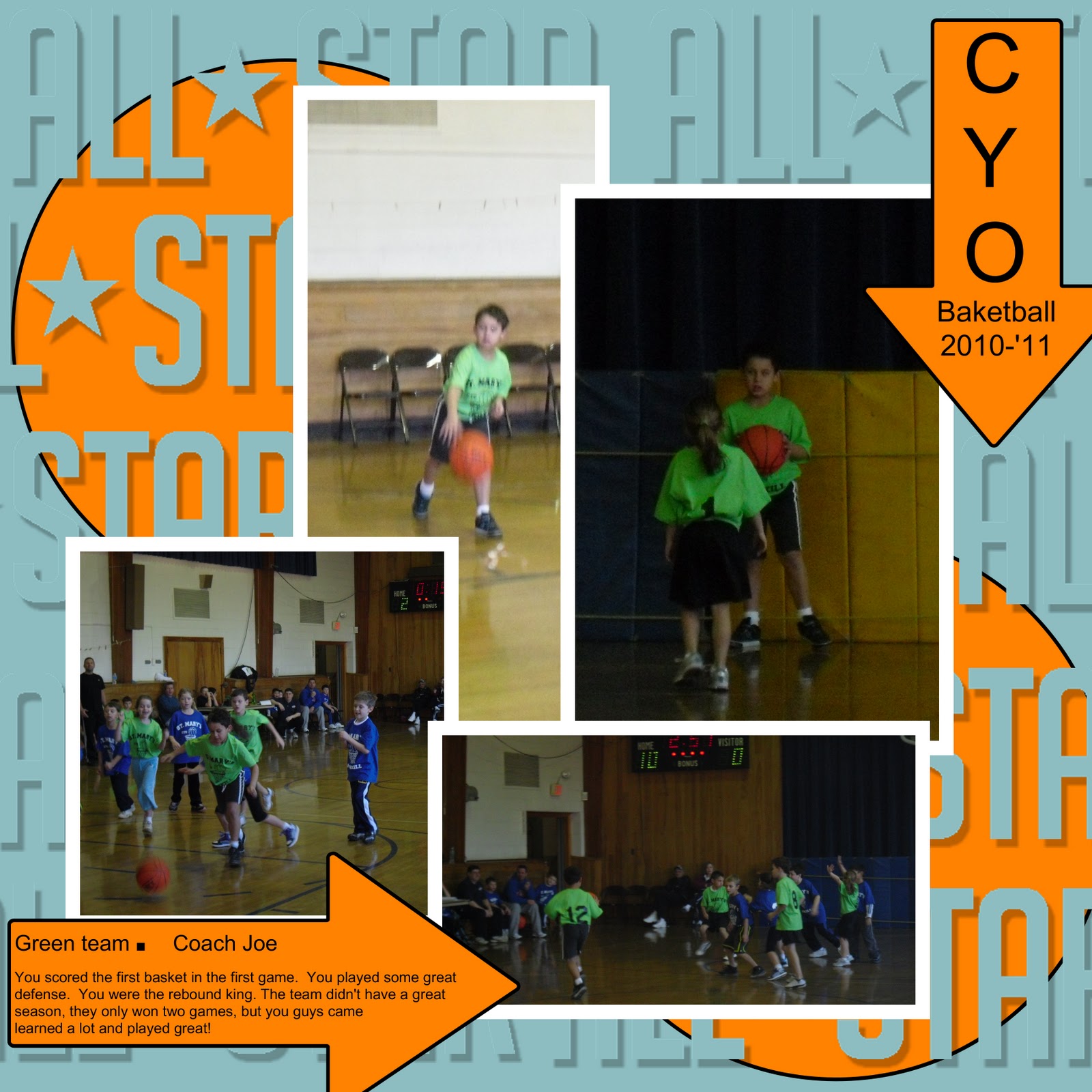
When I create cards or scrappages, I sometimes like to create embossed backgrounds. I wanted to do that on this basketball page for my son. Usually, I just grab my stamp set, versamark ink pad, and clear embossing powder and stamp away, but how do I create that digitally.

It was SO easy, I had to share.

Here is the page I created:


I used the All Star stamp to create an emboosed look on the background of the page.
Here is how I did it:


 Start by choosing a background color.  I am using Baja Breeze.


Then choose a stamp.  I am using the All Star stamp in the Sporting Stamp Set.


I resized the stamp and then clicked on Change Color in the Design Center.  I choose the same Baja Breeze as the background.


 Your stamp will disappear into the background.  Go to the Design Center and click on the Drop Shadow.  Set the Blur to none, the Opacity to about 50, and the color should stay black.  Click OK.

(Feel free to play with opacity setting to create different depth.)


And TA DA!!!!! It looks like you embossed the stamp.

Here is another background I created for my son's scrapbook.


Go give it a try.  Thanks for looking.
Related Posts Plugin for WordPress, Blogger...